
How to Set a Signing Order
Control the order in which recipients view and sign a document, including parallel signing for groups.
Problem
You need to control the sequence in which recipients receive and sign a document. For example:
- An internal approver must sign before the client.
- Several team members sign in parallel before the document moves to the next group.
- A CEO signs last, after everyone else has completed.
Prerequisites
How signing order works
signing_orderis an integer ≥ 1. Lower numbers sign first.- Recipients with the same number sign in parallel — they form one group and receive the document at the same time.
- The document moves to the next group only after every recipient in the current group has completed.
- To remove the order, set
signing_ordertonullfor all recipients. - The order is all or nothing: either every recipient has a
signing_order, or none of them do. A mix of ordered and unordered recipients is rejected.
Set the signing order
Option A: In the create request
Add a signing_order parameter to each recipient. Lower numbers sign first:
POST /public/v1/documents

{
  "recipients": [
    {
      "email": "[email protected]",
      "first_name": "John",
      "last_name": "Snow",
      "role": "Signer",
      "signing_order": 1
    },
    {
      "email": "[email protected]",
      "first_name": "Josh",
      "last_name": "Ron",
      "role": "user",
      "signing_order": 2
    }
  ]
}
This sets or overrides the signing order regardless of any template settings.
Option B: On an existing document
Change the signing order on an existing document with the Update Document endpoint. Identify each recipient by id — get the ids from the Document Details endpoint. The document must be in document.draft status.
See Change the signing order below for sequential, parallel, disable, and partial-update examples.
Option C: In the template
Configure the signing order directly in your template so all documents created from it inherit the same order. This is the recommended approach for standardized workflows.
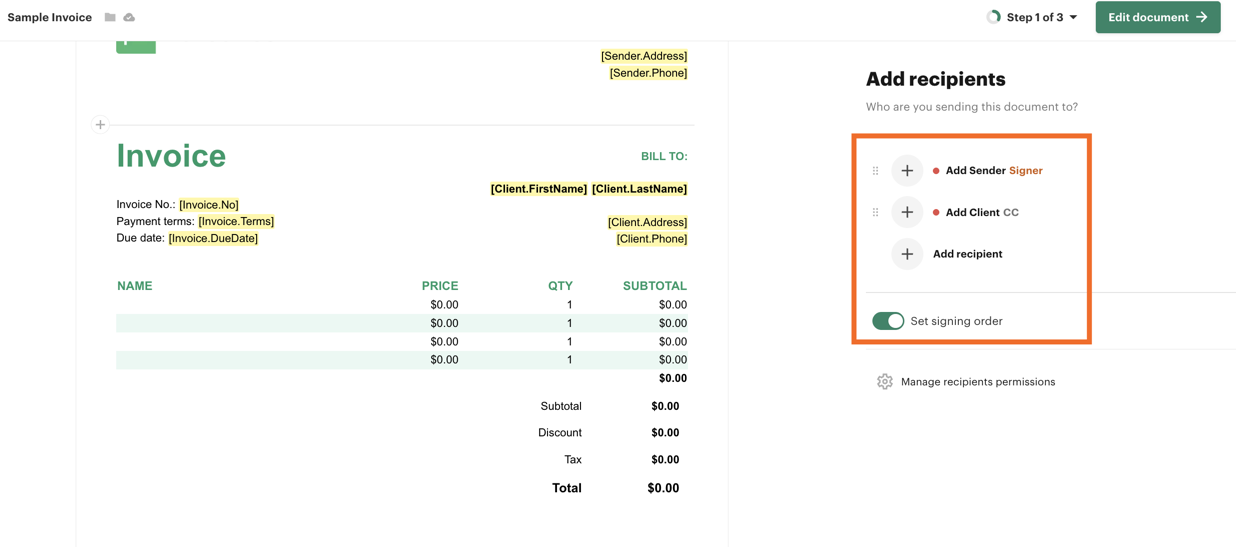
When creating a document from this template, the recipients' signing order matches the role order defined in the template. You don't need to pass signing_order in the request.
Change the signing order
These examples use the Update Document endpoint and identify recipients by id (get the ids from the Document Details endpoint).
Set a sequential order
Lower numbers sign first:
PATCH /public/v1/documents/{document_id}

{
  "recipients": [
    { "id": "tf5dGS3Tmu3cj228ao6fnc", "signing_order": 1 },
    { "id": "pGkLnJUAx99JpXJy5DVD30", "signing_order": 2 }
  ]
}
Sign in parallel
Give recipients the same number — they receive the document at the same time:
PATCH /public/v1/documents/{document_id}

{
  "recipients": [
    { "id": "tf5dGS3Tmu3cj228ao6fnc", "signing_order": 1 },
    { "id": "pGkLnJUAx99JpXJy5DVD30", "signing_order": 1 }
  ]
}
Disable the signing order
Send signing_order: null for every recipient:
PATCH /public/v1/documents/{document_id}

{
  "recipients": [
    { "id": "tf5dGS3Tmu3cj228ao6fnc", "signing_order": null },
    { "id": "pGkLnJUAx99JpXJy5DVD30", "signing_order": null }
  ]
}
Partial updates
Once a signing order is set, you don't have to send every recipient — pass only the ones you want to change. Omitted recipients keep their current signing_order. For example, swap two recipients:
PATCH /public/v1/documents/{document_id}

{
  "recipients": [
    { "id": "tf5dGS3Tmu3cj228ao6fnc", "signing_order": 2 },
    { "id": "pGkLnJUAx99JpXJy5DVD30", "signing_order": 1 }
  ]
}
Verification
Check the signing order via the Document Details endpoint. Each recipient in the response includes a signing_order field confirming their position.
Related
Updated 3 months ago