
How to Set Up Embedded Sending
Embed the PandaDoc editor in field-placement mode so users can upload PDFs, place fields, and send for eSignature without leaving your platform.
Problem
You want your users (Sales Reps, Recruiters) to upload a PDF, place signature and form fields on it, and send it for eSignature -- all within your application. Embedded Sending uses the same PandaDoc Editor as Embedded Editing, but in field-placement-only mode -- no content blocks, just interactive fields.
Prerequisites
- Your organization is a PandaDoc client
- The end user's browser supports
postMessage
How it works for your users
From your user's perspective, the flow is:
- Upload a PDF using a button in your app.
- Drag and drop document fields (signature, date, text, dropdowns, radio buttons, etc.) onto the PDF. Assign fields to recipients.
- Send for signing via email, a signing link, Embedded Signing, or in-person signing.
- Optionally, save the field configuration to reuse on future uploads.
Demo
Reference architecture
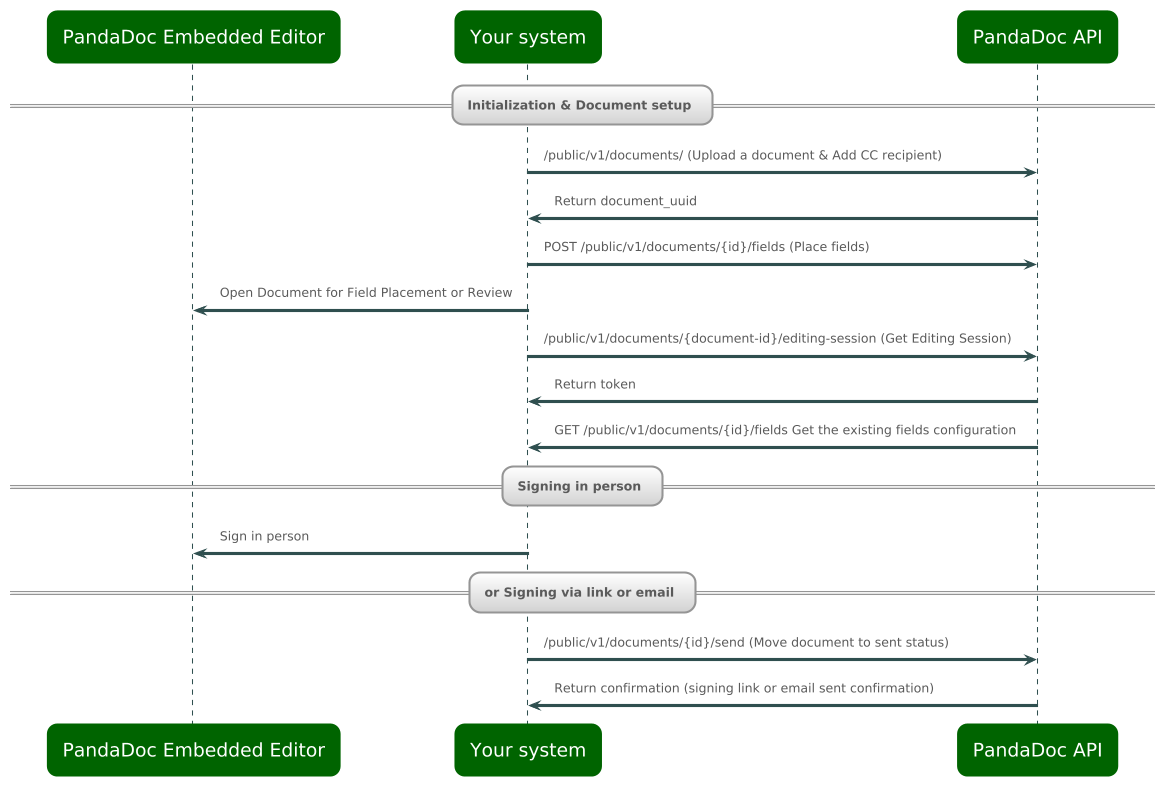
Solution
Step 1: Obtain an editing session token (E-Token)
Create a document from the uploaded PDF using the Create Document endpoint, then generate a short-lived editing session token:
Step 2: Install the editor package
The PandaDoc Embedded Editor is available as an npm package:
yarn add pandadoc-editorStep 3: Initialize and open in field-placement mode
Set fieldPlacementOnly: true to show only field placement controls (no content blocks):
import { Editor } from "pandadoc-editor";

const editor = new Editor(
    "editor-container",
    {
      fieldPlacementOnly: true,
      token: "", // E-Token is optional during initialization
    }
);

await editor.open({
    token: "your-e-token"
});
Step 4: Configure visible fields (optional)
Control which field types appear in the editor:
await editor.open({
    token: "your-e-token",
    fields: {
        "signature": { visible: true },
        "date": { visible: true },
        "stamp": { visible: false },
        "payment_details": { visible: false },
    },
});
Default field configuration
All fields are visible by default:
const defaultFieldConfig = {
    "checkbox": { visible: true },
    "dropdown": { visible: true },
    "date": { visible: true },
    "signature": { visible: true },
    "stamp": { visible: true },
    "initials": { visible: true },
    "payment_details": { visible: true },
    "collect_file": { visible: true },
    "radio_buttons": { visible: true },
};
Replicate fields placement
If your PDFs share a consistent layout but vary in content, you can save a fields configuration once and apply it to future documents automatically -- avoiding manual field placement each time.
- List Document Fields -- get the fields configuration from an existing document.
- Create Document Fields -- apply a saved configuration to a new document.
Your application can store multiple field layouts corresponding to different document types, letting users select the right one when uploading a new PDF.
Related
- Understanding the Document Workflow Lifecycle -- how embedded sending fits the overall lifecycle
- How to Set Up Embedded Editing -- same PandaDoc Editor in full mode
- How to Embed Document Signing -- embed the signing experience
- Embedded Editing/Signing Playground -- try it without an account
- pandadoc-editor npm package
Updated 6 months ago